Managing your profile privacy on a desktop computer gives you the highest level of control. Depending on whether you are adjusting an outdated update or composing a brand-new announcement, pick one of the two strategies outlined below.
Method 1: Changing Privacy for Existing Posts
If you have already published content and realized later that it is hidden from the world, learning how to make a facebook post public on your desktop will solve this instantly. Follow these instructions to open it up:-
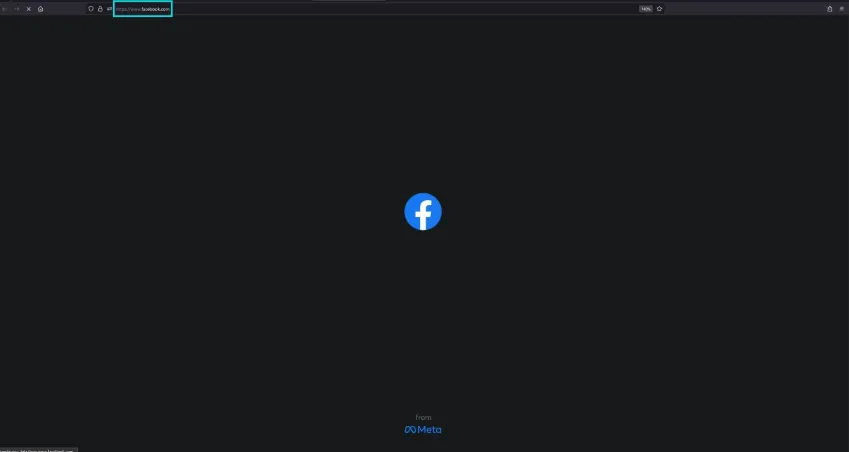
Open your preferred desktop web browser and navigate to facebook.com. If prompted, enter your email and password credentials and click the Log In button.
-
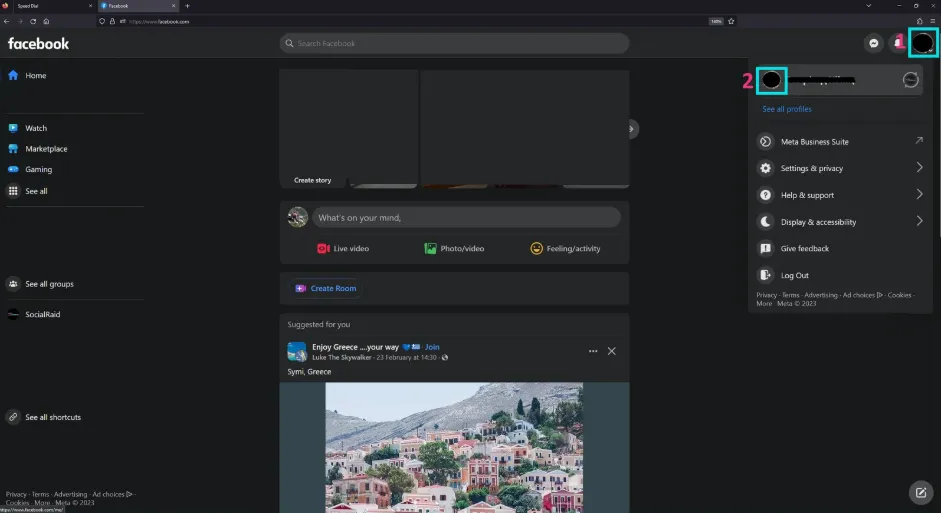
Left-click on your profile picture icon at the far top-right corner of the page to open the user options menu, then left-click your profile name or picture at the top-left area of that menu to transition straight to your personal Facebook timeline.
-
Scroll down your timeline to locate the specific post you wish to modify and make visible to the public right next to the post date, you will spot a small privacy indicator icon (such as a lock for private, or a two-people icon for friends).

-
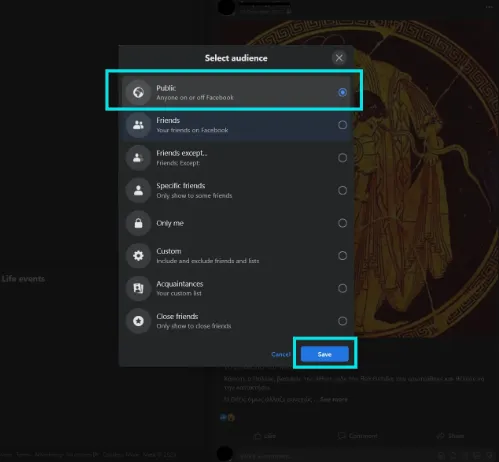
In the newly opened Select Audience window, choose the Public option and click the blue Save button. Your facebook post will be now instantly visible to anyone.
Method 2: Adjusting Privacy for New Posts
If you want to ensure your upcoming post is visible to a global audience from the very second it goes live, configure it directly from your news feed box:-
Log into facebook.com to land on your central homepage where the news feed is displayed.
-
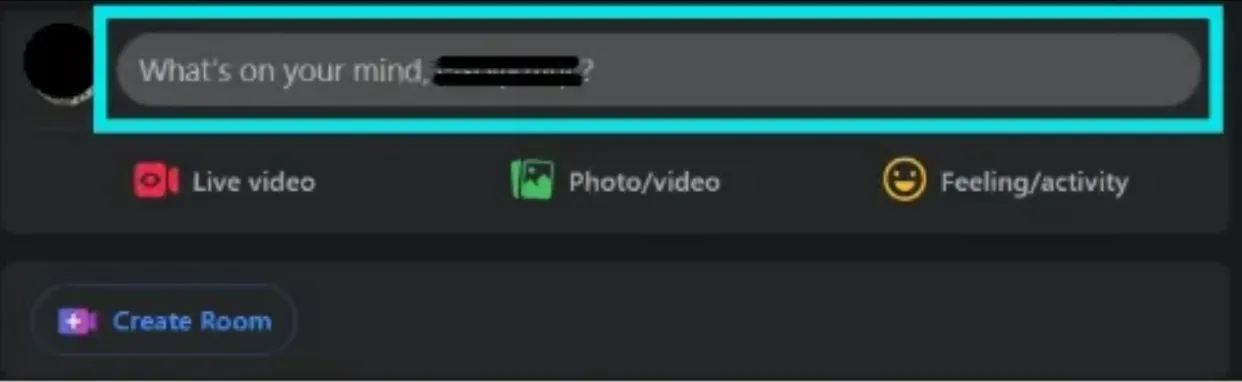
Click inside the main content creation box labeled “What’s on your mind?” to trigger the pop-up composition window.
-
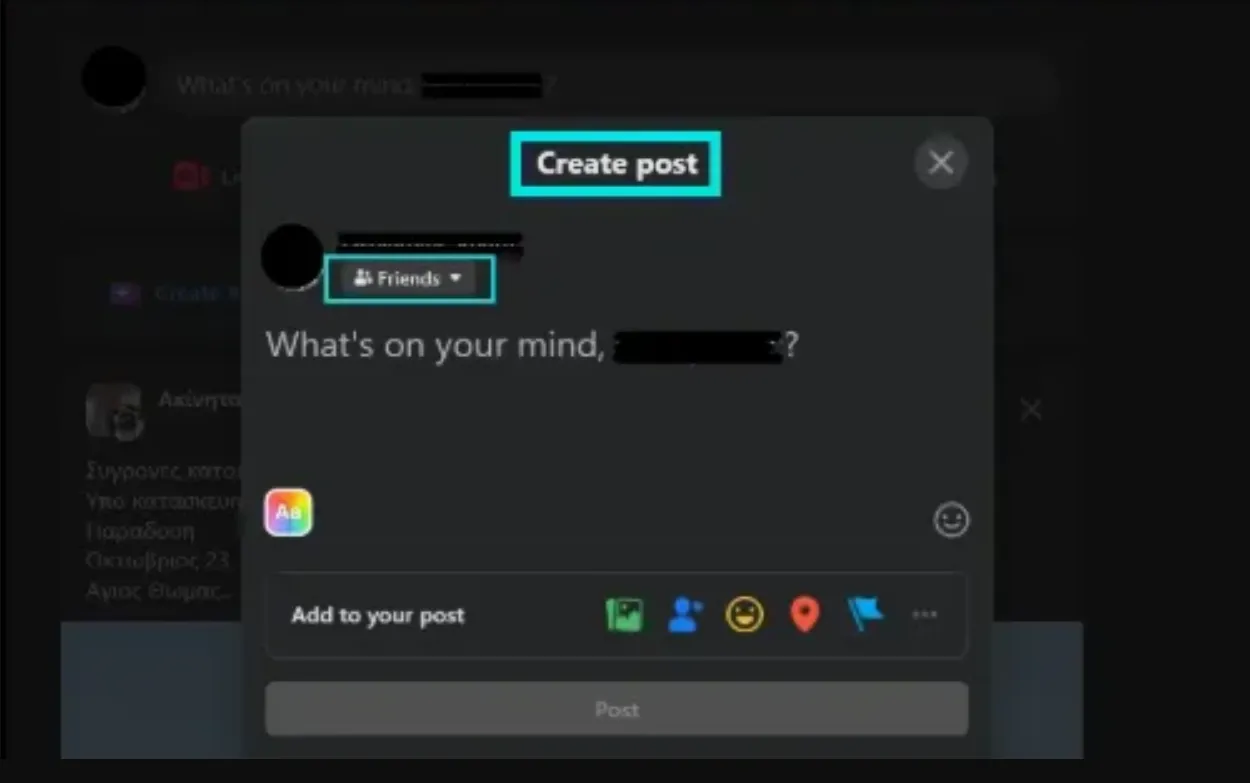
Directly beneath your account profile name, locate the small audience selector button (it usually defaults to Friends). Left-click on it.
-
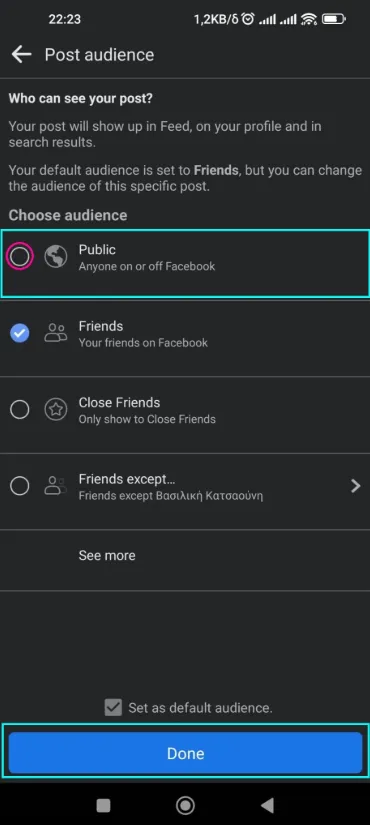
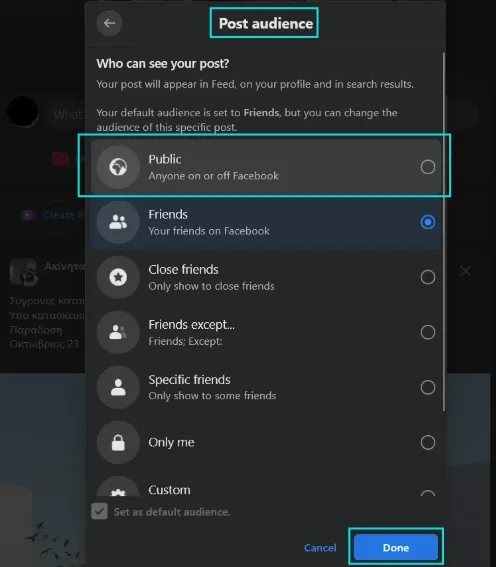
A dedicated window named Post Audience will pop up on your monitor. Highlight the Public option and click Done.
Type out your copy, upload your media assets, and hit the Post button. Now that you know exactly how to make a facebook post public, anyone—regardless of whether they follow you or even own a Facebook account—can now view it.
How to Make a Facebook Post Public on Smartphone (Android & iOS)
Method 1: Opening Up Existing Mobile Posts
If you are a mobile-first creator managing your digital footprint on the go, discovering how to make a facebook post public via the native Facebook mobile application is incredibly straightforward. Use these steps to unlock an existing post:-
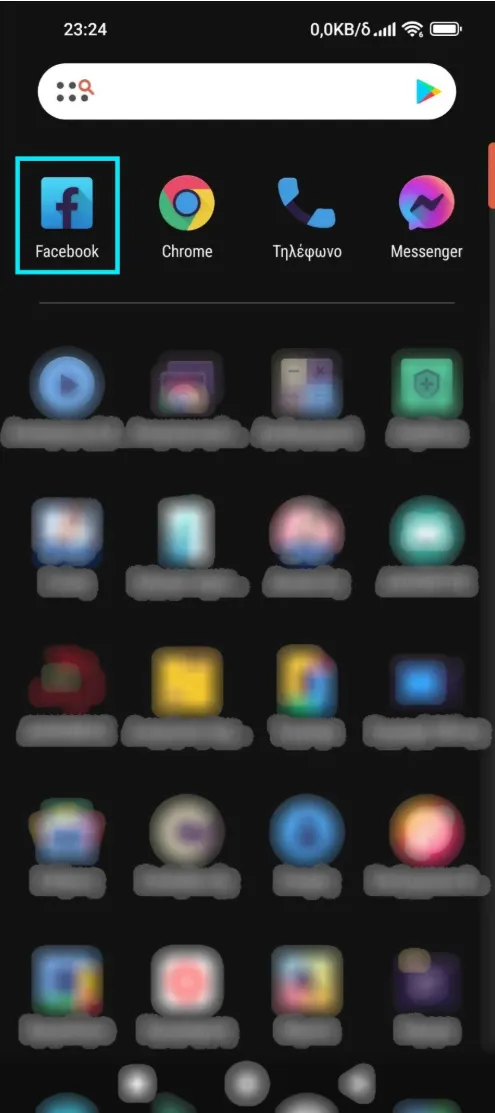
Launch the official Facebook app on your Android or iOS device and log into your account.
-
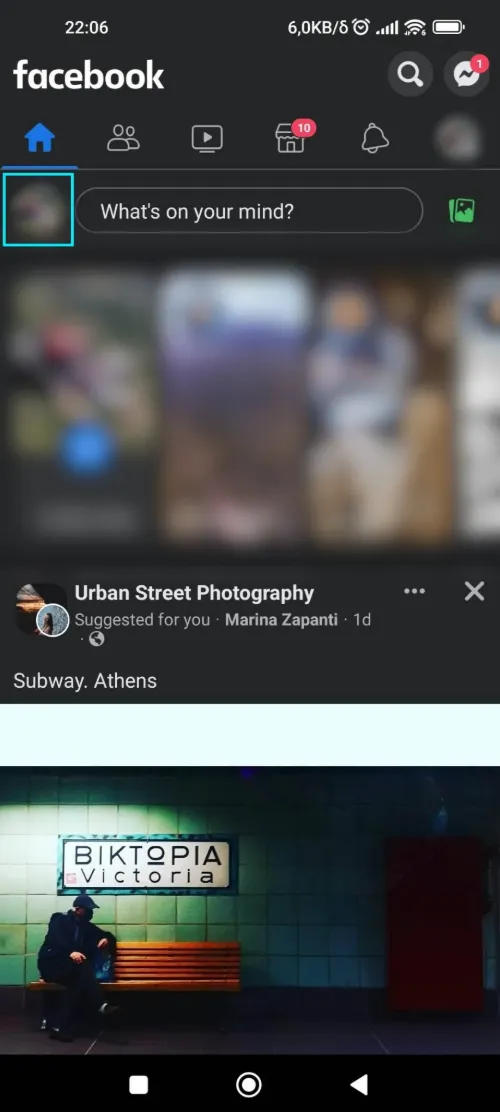
Tap your mini profile image on the top-left section of the UI, situated right next to the composition text area, to enter your timeline feed.
-
Scroll down your personal profile feed to find the specific post you want to unlock. Move your eyes to the top-right corner of that individual post box, locate the three dots (…) icon, and tap it.

-
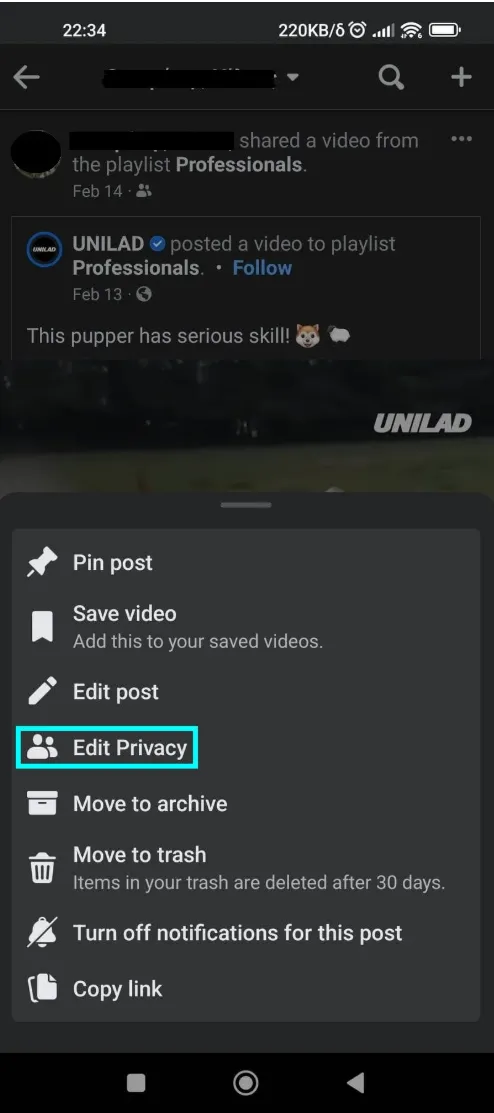
From the system utility menu that populates your mobile screen, select the Edit Privacy option.
-
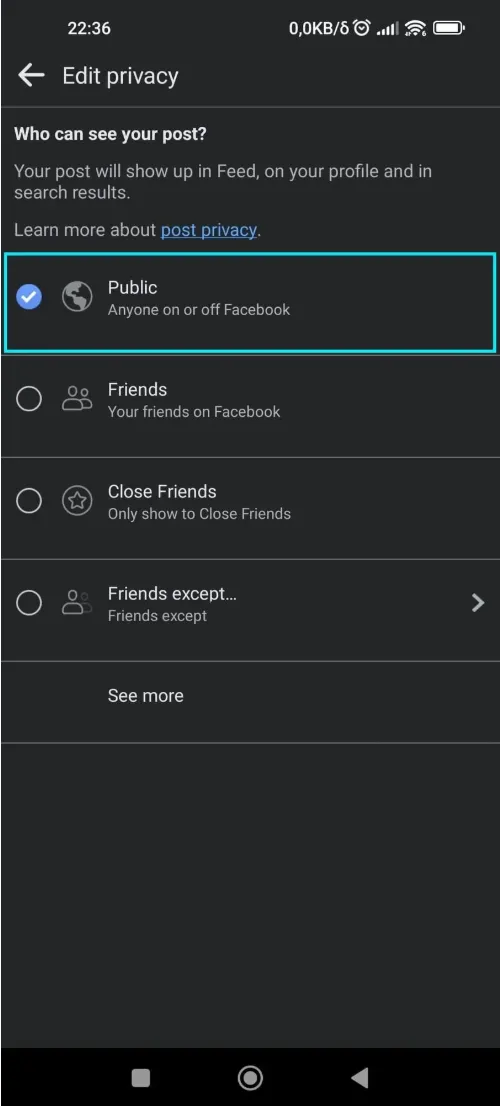
Tap the Public check circle. The application updates automatically, exposing the post to all users instantly.
Method 2: Setting a New Mobile Post to Public
To ensure that your newly created status updates or media uploads are instantly open to a global audience, here is how to make a facebook post public on mobile directly during draft composition:-
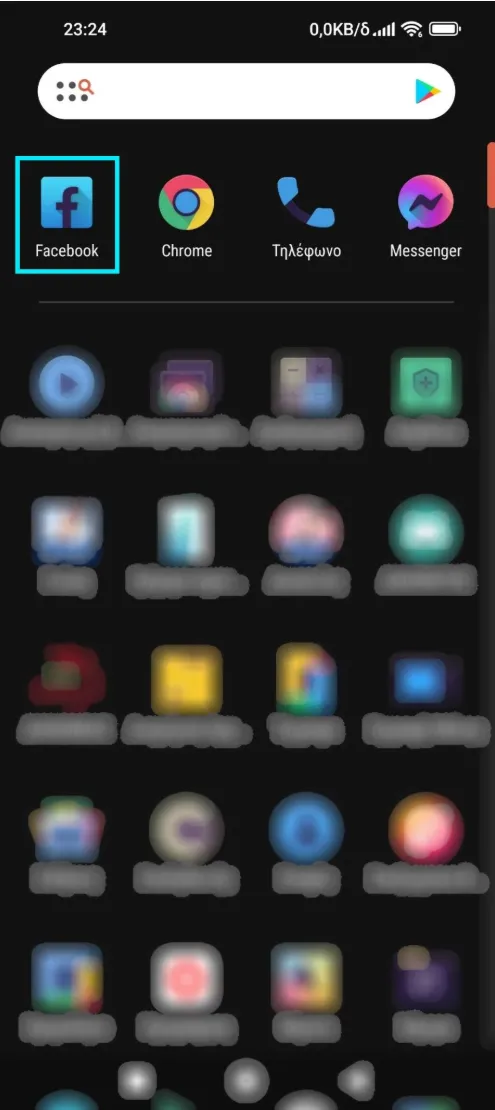
Open the Facebook mobile application on your device.
-
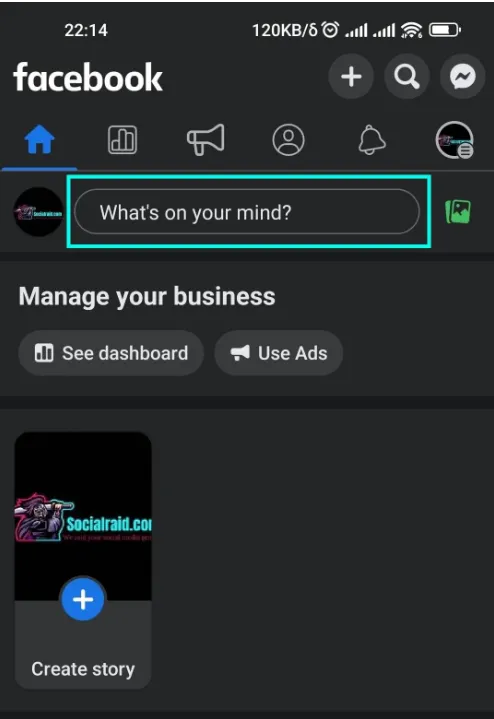
Tap directly on the “What’s on your mind?” text field to start drafting your update.
-
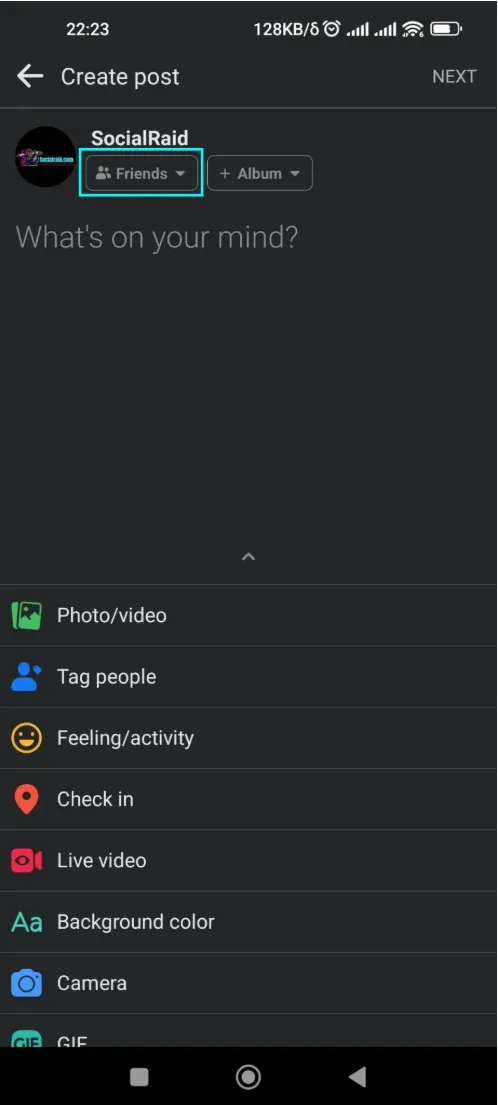
Look directly beneath your account username at the top. Tap on the privacy dropdown button (which typically reads Friends).
-
Select the Public option from the audience selector overlay list and tap the Done button in the corner. Complete your post creation and publish. Now, you successfully mastered how to make a facebook post public, meaning your network and global search crawlers can track the entry effortlessly.